Learning Python: Unit 2, Interpreter
Topics
●How Python runs programs
●How you run programs
●Example program launches
●Python configuration details
●A first look at module files
●The IDLE interface
●Other Python IDEs
●Execution model
♦A �script�: text file of statements, �mod.py�
♦mod.py (sourcecode) →
mod.pyc (bytecode) →
Python Virtual Machine
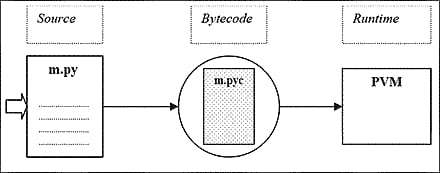
Recent changes: bytecode files appear alongside their .py source files in Python 3.1 and earlier (e.g., �PyGadgets.pyc�), but in a __pycache__ source subdirectory with filenames giving Python implementation and version numbers in 3.2 and later (e.g., �__pycache__/PyGadgets.cpython-33.pyc�) to limit recompiles.� Python 3.5 and later also drop the notion of �.pyo� optimized bytecode files, created with �-O� switches, instead adding a tag to the �.pyc� filename (a rarely-used option).
●Execution variations
♦JITs: just-in-time compilers for Python bytecode: see PyPy, Numba
♦Frozen binary executables: see Py2Exe (Windows), PyInstaller (+Linux), cx_freeze
♦Other VMs: PyPy (Python VM in Python), Parrot (language neutral, pies)�
●5 major implementations today
♦
: ����� the standard (coded in C)
♦
:��������� for scripting Java apps (Java VM)
♦
:�� for scripting C#/.Net apps (.Net VM)
♦
:������������ CPython for speed (JIT)
♦
:���� for massive concurrency (gaming)
♦Plus others:
(JIT+types),
(Py+C hybrid),
(Py→C++), �
♦See also JPype, Python.net: other Java/.Net access
●Top-level program architecture
♦Program = multiple .py text files
►One is the �main� top-level file: launch to run
►Others are �modules�: libraries of tools
►Some modules come from the �standard library�
♦Modules accessed and linked by imports: �import module�
►Import = find it,� compile it (maybe),� run it (once)
♦Attributes fetched from objects: �module.attr�
►Variables inside objects (including modules)

b.py
deffunc():
��� ......
a.py
import b
b.func()
sys.path (module import search path) =
�.� + PYTHONPATH + .pth files + Std Libs
Installation packaging: 3rd-party software often uses distutils �setup.py� script to install its code in auto-searched Lib\site-packages in Python install tree � no PYTHONPATH configuration required (see built-in tools unit for more on distutils).� More recently, �eggs�, �pip�, and �wheels� have emerged for building install packages (see the web, PyPI, or ahead).
●Demo: Program launch options
Where to put your code:
■Create a directory such as �C:\class� to hold all the script files you�ll create during the class.
■Do all your work there, to keep things simple for now.
♦Interactive coding� (�>>>�: testing, experimenting)
♦Shell/DOS command lines� (running script files)
♦Double-click icons� (Windows: raw_input trick)
♦IDLE: a free IDE GUI (Windows: via Start or Apps)
♦Module imports, reloads; exec(open().read())
♦Embedding calls
♦Unix executable scripts (#!)
♦Other IDEs: Komodo, Eclipse, NetBeans,�
See also: Windows launcher in 3.3+ (and separately)
●Parses #! lines on Windows to get version number: #!/usr/bin/python2, #!python3
●Accepts version number in command lines: [py -2],[py -3 m.py], [py -2.6 �i m.py �x]
●Registered to open Python files when clicked, and parse #! Directives
●Default or missing version cases use PY_PYTHON environment var
●More detail:
http://learning-python.com/books/py33-windows-launcher.html
Usage notes:
■Don�t type the �%� or �C:\...>�: they mean your shell�s prompt.
■Type system commands at �%�, and Python code at �>>>�.
■In 3.X, always use �print(X)� instead of �print X�.
●UNIX-style scripts
file: brian
#!/usr/local/bin/python����������� #or: /bin/env python
print 'The Bright Side of Life...' # another comment
% brian������ # "%" means your shell prompt
●Command lines, module files
% python spam.py -i eggs -o bacon
●Interactive command line
% python������������������ # "%" means your shell prompt
>>> print 'Hello world!'�� # ">>>" is Python�s prompt
Hello world!
>>> lumberjack = "okay"��� # ctrl-D or ctrl-Z to exit
●Embedded code/objects (day 3)
Py_Initialize();
PyRun_SimpleString("x = brave + sir + robin");
●Platform-specific startup methods
♦Command-line interfaces
♦GUI start-up interfaces: .pyw files
(mostly optional)
●Module search path, for importing from other directories (only!)
♦PYTHONPATH shell/environment variable
♦�.pth� configuration files: C:\Python24\mypath.pth
♦sys.pathbuiltin list changes , but temporary
♦Module search path =� [directory of main file + PYTHONPATH + standard libs + .pth file contents]
♦Only add user-defined directories to search path (e.g. PYTHONPATH), not main or standard libs
●Other settings
♦Interactive startup file: PYTHONSTARTUP
♦GUI variables (not on Windows): TCL_LIBRARY, TK_LIBRARY
♦System search path, to find python:� PATH
♦3.3+ Windows launcher default: PY_PYTHON
Making environment settings: On Windows, set environment variables via �Start (or Apps) => Control Panel => System => Advanced Settings => Environment Variables => New/Edit�.� On Linux, set in your shell or login startup files.� On Windows, recent 3.X installers automatically set PATH to include �python� and �py�.� Windows installers also register these programs to open scripts by filename associations (for icon clicks and command lines).
Installation details
●Python comes in binary or C source-code forms
●Windows self-installer executable: simple double-click, includes Tk
●Linux, Mac OS X: Python is a standard component
●C source code configures/builds automatically
●See �
� folder or Python source distribution �Readme� for install details
●See also alternative distributions, such as Enthought and ActiveState
A UNIX config file (~/.cshrc or ~/.login)
#!/bin/csh
set path = (/usr/local/bin $path)
setenv PYTHONPATH /usr/home/pycode/utilities
setenv PYTHONPATH /usr/lib/pycode/package1:$PYTHONPATH
Old: A Windows config file (C:\autoexec.bat)
●Reboot after autoexec.bat changes
●Use the ControlPanel/System/Advanced GUI to set this in recent versions of Windows (and restart Python)
●�cd C:\Python24�, if you don�t want to set your PATH
doskey /insert
PATH %PATH%;C:\Python24
set PYTHONPATH=C:\pycode\utilities
set PYTHONPATH=D:\pycode\package1;%PYTHONPATH%
A path file (C:\Python24\mypath.pth)
�
c:\pycode\utilities
d:\pycode\package1
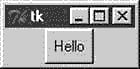
A GUI test session
●Type this to test your Python/GUI configuration
●On Linux, Mac OS X: may need extra packages (CD)
% python
>>> from Tkinter import *
>>> w = Button(text="Hello", command='exit')
>>> w.pack()
>>> w.mainloop()� # don�t type this line in IDLE!
●To avoid retyping code interactively
●�.py� filename suffix needed if imported
●Import and use names at top-level of module file: attributes
●�dir(module)� lists a module�s attributes
●�help(module)� gives help
●�reload(module)� reruns an already-loaded file�s code again; import won�t!� (3.X: �from imp import reload�)
file myfile.py
name = "The Meaning of Life"��� ←Define name(attribute)
% python����������������������� ←Start Python
>>> import myfile�������������� ←Load whole module
>>> print(myfile.name) ���������←Use its names
The Meaning of Life
% python����������������������� ←Start Python
>>> frommyfile import name���� ←Load specific names
>>> print(name)���������������� ←Use names directly
The Meaning of Life
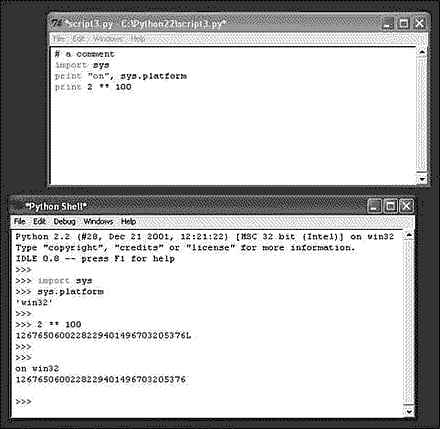
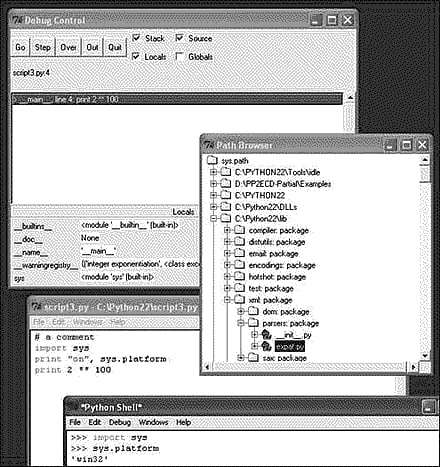
●A simple integrated development environment
●Shipped and installed as part of the Python package
●Editor, syntax coloring, debugging, class browser, etc.
●Alternative to shell command-line + editor, or clicking
●Written in Python, using the [tT]kinter GUI library
●Windows start: �Start� menu or Apps screen
●Command line start → python -m idlelib.idle
USAGE HINTS
●Run code by menu �Run→Run� Module� in edit window
●Alt-P/Alt-N scroll through command history
●Right-click error message text to go to code directly
●IDLE changes directory to most recently run script
●If connection errors before 3.4: �python -m idlelib.idle �n�
Somewhat dated screenshots of IDLE at work (run it live!)�
Other Python IDEs
Run a web search for up to date links on any of the following.
●IDLE: ships with Python
●Eclipse, with PyDev (or other) Python plug-in
●NetBeans: formerly Sun, now community
●Activestate: Komodo, VisualPython, PythonWin
●PythonWare: Pythonworks (still available?)
●Others: Visual Studio, PyCharm, pyscripter, WingIDE,� (see the web for links)
●Basic: text editor (Notepad, vi)� + command-line window (Command Prompt, xterm)
GUI Builders (ahead)
●Komodo and PythonWare include interactive GUI builders, that generate Tkinter code
●Other GUI builders for wxPython, PyQt: BoaConstructor, BlackAdder, wxDesigner, QtDesigner
●Application builders: Dabo, PythonCard
●Website builders: Django, TurboGears, Zope, WebWare, mod_python, Plone, � (see
)
●Lab exercises are at the
(see links below)
●Source code for lecture
and lab
also available
●Some solution write-ups appear
●You are encouraged to "cheat": see solutions for pointers
●Ask the instructor for hints, tips, and help
Lab Session 1
Click here to go to lab exercises
Click here to go to exercise solutions